Neither approach is simply better. They are tuned for different goals. This explainer lays out how each works, where each wins, and where each lets you down. For a hands-on example of the live side, LiveGen's photo to video tool that streams as you drag is the one used for the walkthrough below.
Key takeaways: render-and-wait versus real time video generation
- Batch generation renders every frame offline and returns a finished file. Any change means a new render.
- Live video generation streams frames back while the input is still happening, so you correct the result in the moment instead of re-queuing.
- Batch tools generally win on per-frame detail, clip length, prompt-driven scenes, and workflows that include audio.
- Live tools win on control, iteration speed, and anything that depends on a camera or a moving hand.
- Real-time AI video trades some fine detail for responsiveness. Text, small prints, hands, and fast motion are where you will notice it.
How live video generation differs from a frame-by-frame render queue
Start with the familiar model. In a batch photo-to-video tool, you upload a still, usually add a text prompt, and submit a job. A server then renders the clip frame by frame with no clock to beat. It can spend as long as it needs on each frame and treat the clip as a whole before encoding the file. You wait, download, and review. If the motion is wrong, you edit the prompt and the whole process runs again.
Live generation removes the queue. The input, whether that is a camera feed or a single uploaded photo plus your drag gestures, is sent to a real-time generative video engine, and frames are generated continuously and streamed back while the input is still happening. With LiveGen this runs over WebRTC in a browser tab on desktop or mobile, with nothing to install and no GPU needed on your side. You move, and the picture moves. You drag a little too far, see it, and pull back.
That difference has a price. An engine that must keep up with you cannot linger on any single frame. Live generation favors responsiveness over per-frame polish, so fine detail can be softer than what a slow offline render produces. Lettering, small fabric prints, fingers, and fast movement show it first. A batch render has the opposite weakness: you cannot see any frame until all of them are done.
One more structural difference: a batch tool's output is the file, while a live tool's output is the stream, and a file only exists if you record one. Batch fits "make me a clip." Live fits "let me do something on camera" or "let me direct this by hand."
Trying real-time AI video in a browser: a short walkthrough
The quickest way to feel the difference is to run one photo through a live session. LiveGen is free to try, and generation is metered in credits at one credit per second of live video.
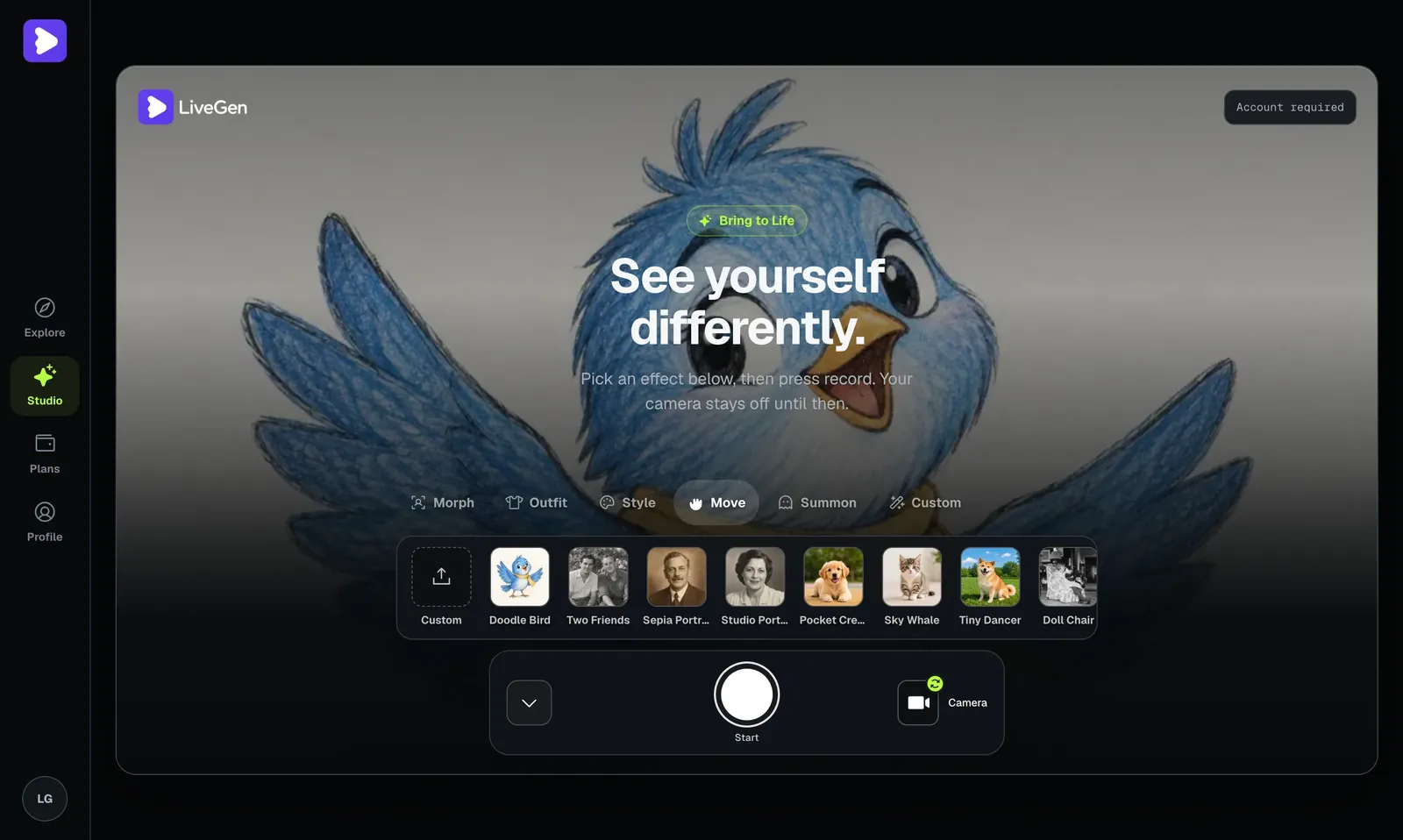
Photo animation is only one use of the same idea. When the input is your camera instead of a photo, the engine transforms the feed as you move. Style Morph, for example, restyles the whole frame, you and the room together, as anime, clay, or a painting while you are on camera.
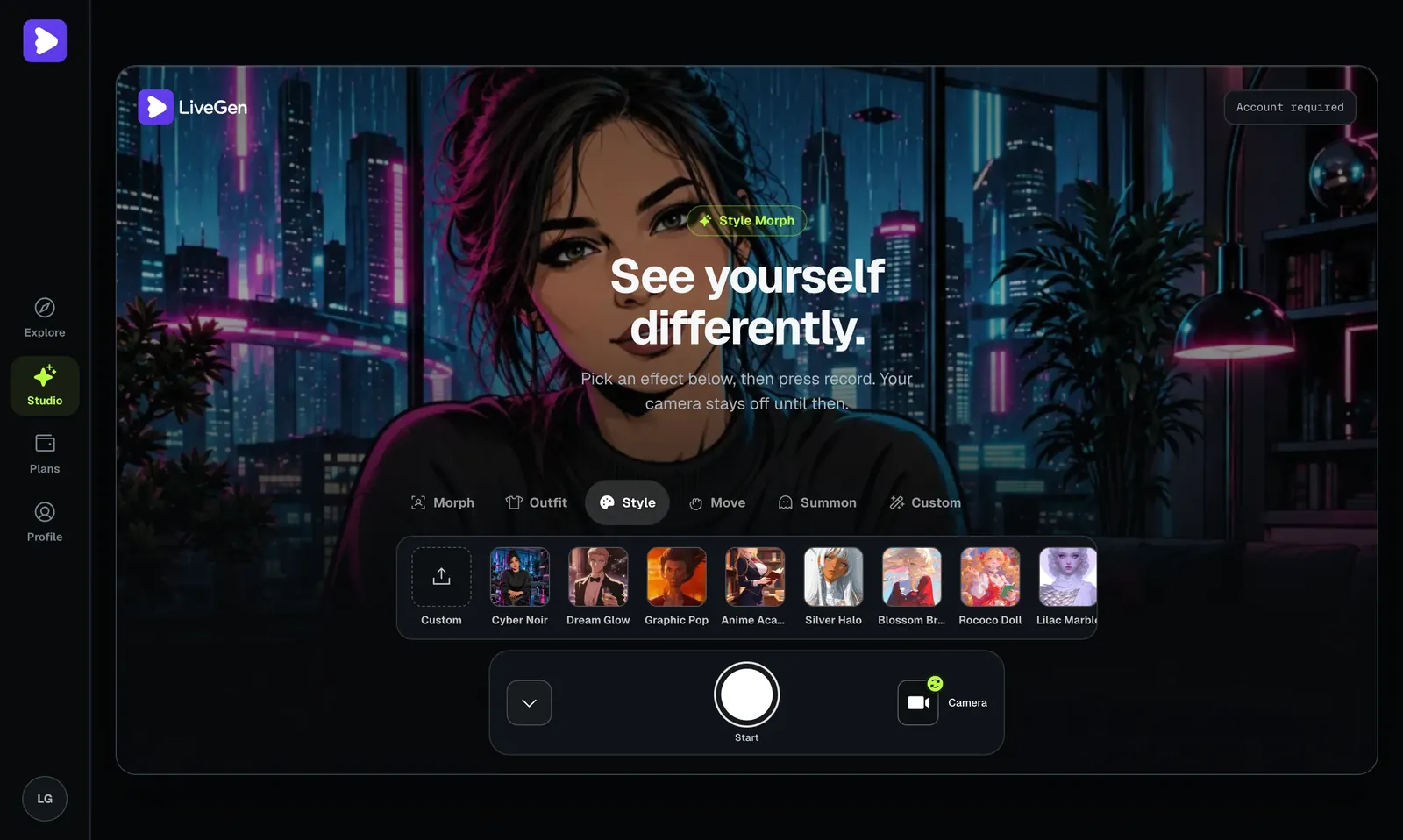
There is no batch equivalent of that experience. You could film yourself and have the footage restyled offline, and the result might be sharper, but you would not see yourself in the style while performing. The Style Morph feature page goes deeper on that mode.
Where batch photo-to-video tools still win
Render-and-wait tools hold clear advantages, and for many projects they are the right choice.
- ✓Polish. With no deadline per frame, an offline render can hold fine texture, small text, and hands more reliably, and keep a subject consistent across the clip.
- ✓Length and structure. Batch tools are built to deliver a complete clip of a requested length. Live sessions are metered per second and LiveGen caps a saved clip at 64 MB, which suits loops and short social posts more than long sequences.
- ✓Audio workflows. Many batch pipelines include or connect to soundtrack, voice, and lip sync steps. LiveGen generates no audio at all, so any sound is added later in an editor.
- ✓Prompt-driven scenes. If you want to describe a camera move, a change of weather, or an action in text and let the model stage it, a batch generator is designed for that. Live photo animation in LiveGen is directed by dragging or motion presets.
- ✓Hands-off production. You can submit several jobs, walk away, and pick the best one later. A live session needs you present the whole time.
If you are making an ad, a music video shot, or anything a client will inspect frame by frame, start with batch.
How to choose between a rendered clip and a live stream
Ask what the motion is for.
Choose batch generation when the deliverable is a finished clip and quality per frame matters more than speed of iteration: product shots, narrative scenes, anything with dialogue or music baked in, anything longer than a short loop.
Choose live generation when the interaction is the point: you want to steer a photo's motion by hand and stop the moment it looks right, you want to appear on camera as a character or in a new style while you speak, or you are experimenting and would rather try ten ideas in a few minutes than wait on ten renders.
Plenty of projects use both. A common pattern is to explore live, since it is the faster way to find out which photo and which motion work, then keep the recorded take for social use or recreate the idea in a batch tool when you need maximum detail.
Cost works differently too. Many batch tools bill per render, including the ones you throw away. LiveGen meters time, one credit per second of live video, so you pay for seconds of exploration instead. Which is cheaper depends on your habits. Free exports from LiveGen carry a watermark, and paid plans remove it and add HD. Current plans are on the pricing page.
What real-time AI video still gets wrong
- ✓Fine detail is softer. Text on signs or clothing, tight patterns, jewelry, and fingers can blur or shift between frames. This is the direct cost of generating on the fly.
- ✓Fast motion smears. Quick gestures or large, sudden drags give the engine less to hold onto. Slow, deliberate movement looks far better.
- ✓Large invented motion is guesswork. A photo shows one angle. Asking a front-facing portrait to turn all the way around forces the engine to invent the rest, and it will not match the real person.
- ✓Your connection matters. The video streams both ways, so an unstable network shows up as stutter. A batch render does not care how good your Wi-Fi is.
- ✓No audio. There is no voice, music, or lip sync in the output.
- ✓Takes are not repeatable. If you loved a live take, you need to have been recording.
- ✓It is not private local processing. Your camera feed or photo is sent to LiveGen's real-time engine to be transformed, and uploads are moderated under a Content Policy.