Those are two different jobs that share a search box. One changes the file type. The other invents motion the camera never recorded. This guide sorts out which one you need, then shows the LiveGen route using AI photo to video in the browser, where you drag on the picture to direct how it moves.
Key takeaways: turning one still photo into a moving clip
- A Live Photo is recorded at the moment you press the shutter. Your phone can turn a Live Photo into a video, but it has no built-in switch that turns an old still into a Live Photo.
- Slideshow editors make a photo a video in the file-format sense: the picture pans or zooms, but nothing inside it moves.
- AI photo animation generates new frames, so a person can blink, a head can turn, or water can drift. That is what most people mean by "make a photo come to life."
- LiveGen's Bring to Life mode outputs a normal MP4 clip (WebM on browsers that cannot record MP4), not Apple's Live Photo container. Setting it as a Live Photo or wallpaper happens on the phone afterwards.
Why a Live Photo and an animated photo are not the same thing
A Live Photo is a still image paired with a few seconds of video and sound that the camera captured around the shutter press. The motion is real footage. That is why you cannot add it later. What phones do offer is the reverse trip. On an iPhone you can save a Live Photo as a video from the Photos app, and Android phones with motion photos have a similar export.
Making an ordinary still move is a generation problem, and there are two ways to run it.
Most AI photo to video tools work in batches. You upload the image and submit a job. A server renders every frame of the clip offline, and minutes later you download a file. If the head turned the wrong way, you change the prompt and wait for a whole new render.
Live generation works differently. With LiveGen, your photo goes to LiveGen's real-time engine over WebRTC, and frames come back as a continuous stream while you are still giving input. You drag on the picture and watch the motion happen, then correct it on the spot instead of queuing another job. The honest cost of that speed: live generation favors responsiveness over per-frame polish, so fine detail such as lettering, small fabric prints, hands, and fast movement can come out softer than it would from a slow offline render.
Three routes to make a photo a video, and when each one fits
1. Your phone's built-in tools. Best when the photo is already a Live Photo. Save it as a video and you are done. Some recent phone software can also add a depth or parallax effect to a still on the lock screen. That is a virtual camera sliding across the same pixels, so the subject stays frozen, but it is often enough for a wallpaper.
2. A slideshow or video editor. Best when you need a video file, not motion. Drop the photo on a timeline, set a duration, add a slow pan and zoom, and export. Apps like iMovie and Google Photos do this well, and they handle music, titles, and many photos in a row. If a platform only accepts video uploads, or you are building a birthday montage, this is the right tool. Nothing in the picture will move.
3. AI photo animation. Best when you want the subject to move: a grandparent's portrait that blinks and turns slightly, a pet that tilts its head, an illustration with drifting hair. Within this route, choose a batch generator if you want to type a prompt and walk away, or a live tool if you want to steer the motion by hand and see it immediately.
Bring to Life steps: from a still photo to a downloadable clip
LiveGen runs in a browser tab on desktop or mobile, with nothing to install and no GPU needed on your side. It is free to try, and generation is metered in credits at one credit per second of live video.
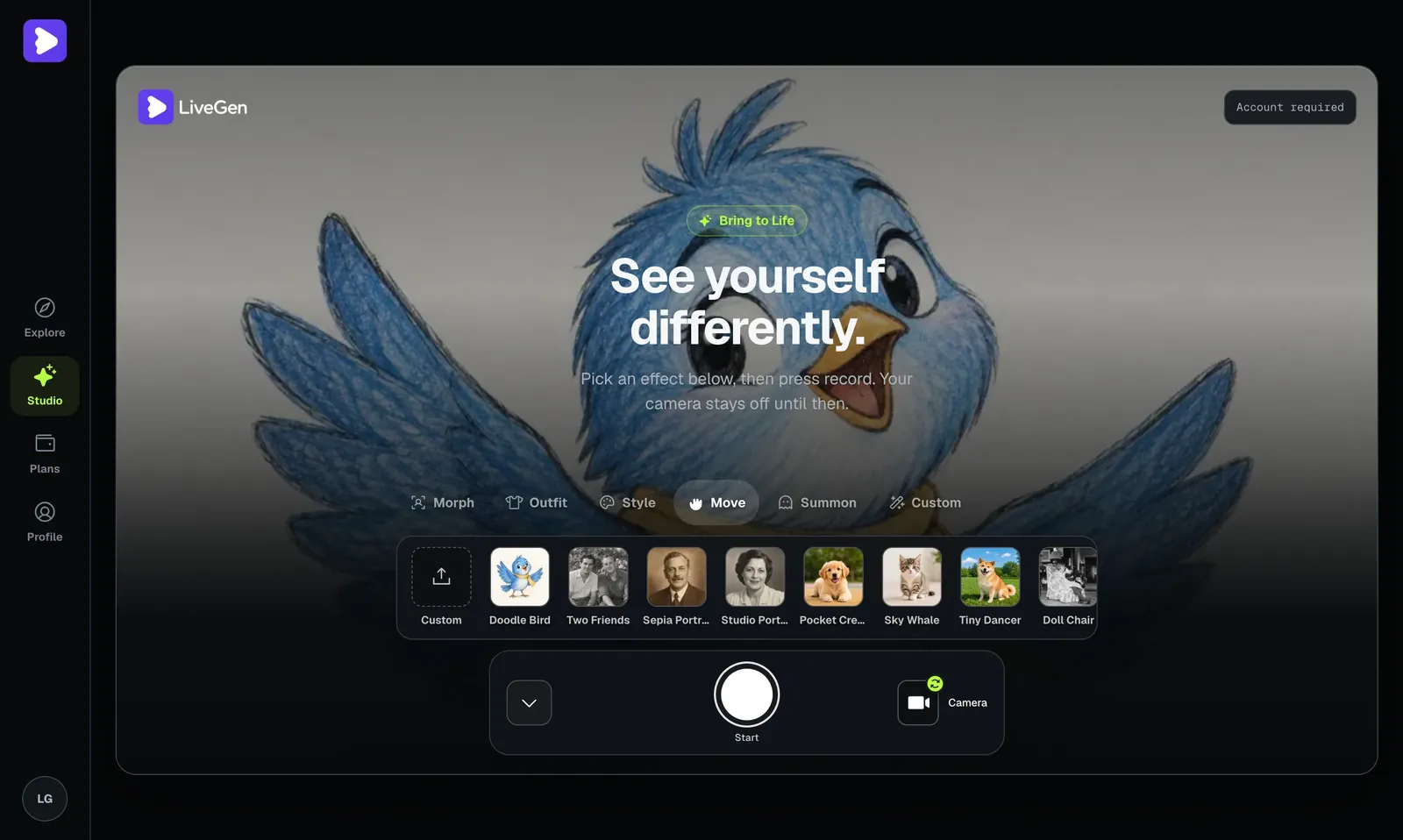
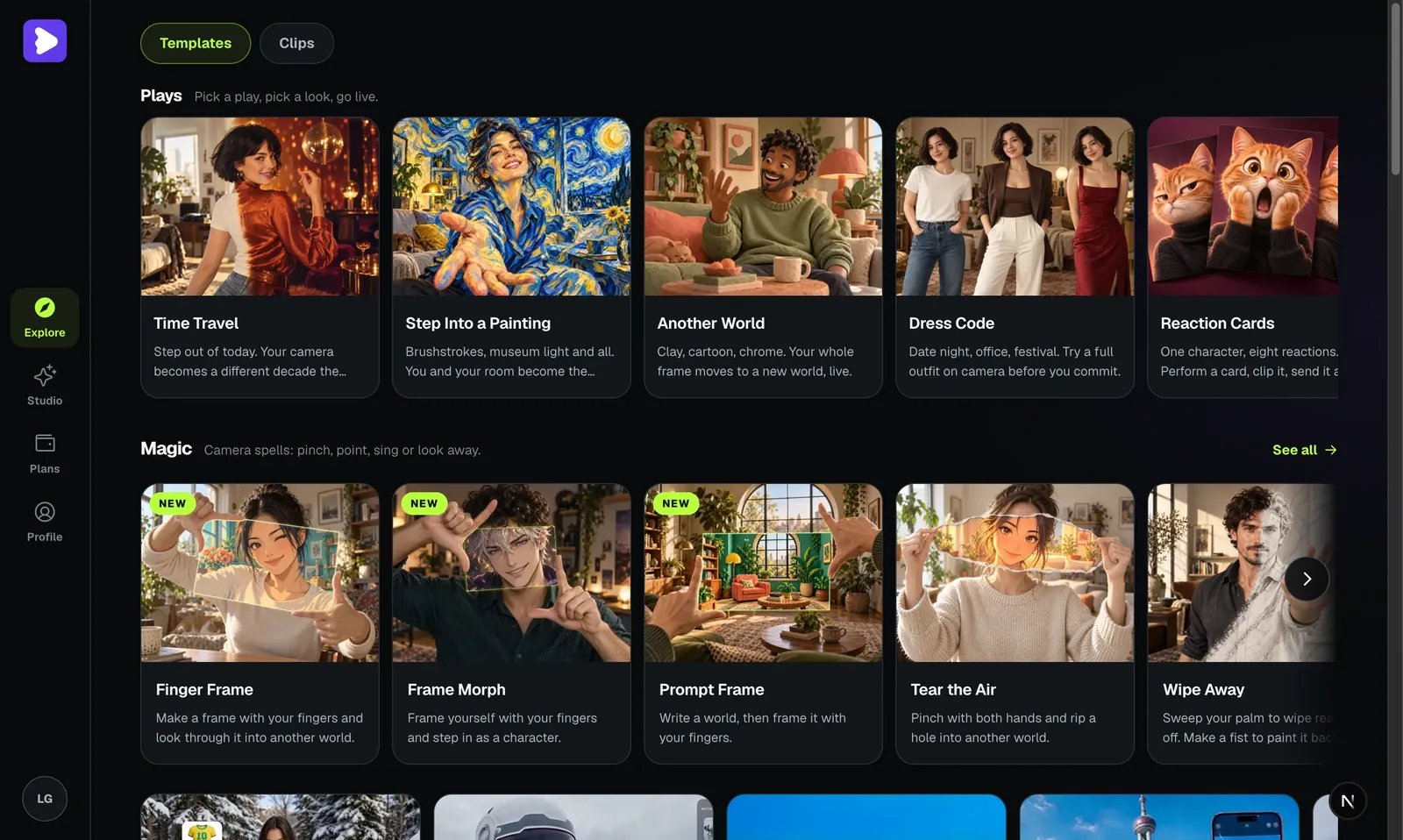
Not sure what to animate first? The Explore page collects ready-made ideas you can open straight into Studio.
Two habits improve results quickly. Use a sharp, evenly lit photo with the subject facing roughly toward the camera. Keep the first drags small, because a slight turn reads as alive while a large swing forces the engine to invent parts of the scene it never saw. The Bring to Life feature page covers motion control in more depth.
Getting from an MP4 to a Live Photo or moving wallpaper
This is the step that trips people up: LiveGen gives you a standard video file. It does not write Apple's Live Photo container, so the last step happens on your phone.
To finish the photo into Live Photo trip on an iPhone, save the clip to your Photos library, then use a video-to-Live-Photo converter app from the App Store to wrap it. After that it behaves like any other Live Photo, including as a Lock Screen wallpaper on iOS versions and devices that support live wallpapers. Support has changed between iOS releases, so check what your version allows.
On Android, many phones accept a video as a wallpaper directly or through the manufacturer's gallery app, and the exact menu differs by phone maker. Either way, keep the clip short and make the motion end close to where it began, because wallpapers and Live Photos replay and a jump at the seam is distracting.
If the goal is a social post instead of a wallpaper, skip the conversion. An MP4 uploads directly to TikTok, Reels, and Stories, and you can pair it with ideas from TikTok video effects.
Limits of turning a photo into a Live Photo or AI clip
- ✓It is not a slideshow maker. Bring to Life animates one picture. For many photos with music, use an editor.
- ✓No sound, voice, or lip sync. The clip is silent. Add audio elsewhere.
- ✓Large motions turn into guesswork. The engine has to invent whatever the photo does not show. A front-facing portrait can turn a little. Asking it to turn all the way around produces a stranger.
- ✓Fine detail softens. Because frames are generated live, text on signs, small prints, fingers, and fast motion are the first things to smear or drift.
- ✓It may not look exactly like the person. Generated motion is a plausible guess, not a recording. For a family photo, keep motion gentle so the result still feels like them.
- ✓Clips are short by design. Per-second metering and the 64 MB cap suit loops and social clips, not minutes of footage.